Create a party room
- On the device that will drive the TV, open karaoke.encoreverse.com.
- Tap Create party room. You land on the stage screen for your new room.
- Tap Tap to start the stage 🔊. Browsers only allow sound after a tap, so this step matters. On a laptop or desktop it also tries to go full screen.
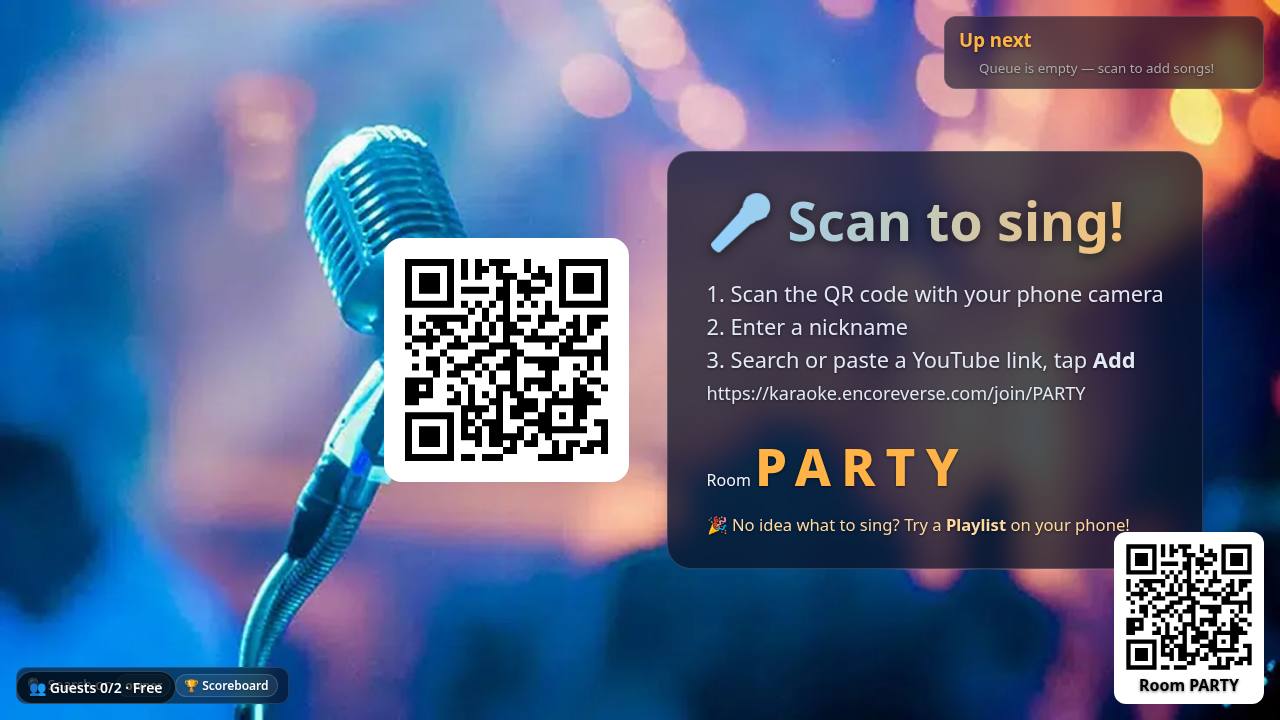
The stage now shows a big QR code and a short room code. No account or app is needed to host.
Already have a code? Type it under Already have a room code? and choose Join as guest (your phone) or Open TV (another screen showing the same stage).
Get it onto the TV
The stage is just a web page, so anything that can show a browser on a big screen works. Pick whichever you have:
📺 Smart TV browser
Open the TV's web browser, go to karaoke.encoreverse.com and create the room there, or use Open TV with a code. Simplest, but some TV browsers are slow or don't play YouTube embeds well.
📡 Cast or mirror
Mirror a laptop, tablet or phone: Google Cast / Chromecast (Chrome menu → Cast → Cast tab or screen), AirPlay (Control Centre → Screen Mirroring to an Apple TV or AirPlay TV) or Miracast (Windows: Win + K). Keep the source device plugged in and nearby.
🔌 HDMI cable
Plug a laptop into the TV with HDMI (USB-C to HDMI adapter on newer laptops). The most reliable option: no Wi-Fi lag, and sound goes down the cable.
Tips for a smooth night
- Full screen: press F11 (Windows) or Ctrl + Cmd + F (Mac). The start tap already asks for full screen on bigger screens.
- Sound through the TV: with HDMI it usually switches automatically; if not, pick the TV as the output in your sound settings. When mirroring, make sure audio is cast too, and turn the TV volume up rather than the laptop.
- Keep the screen awake: the stage asks the browser to keep the screen on (where supported). Still, plug laptops in and set sleep to “Never” for the night, and turn off TV power-saving or screensaver modes.
- Leave the stage tab in front. Hiding it can pause playback or let the device sleep.
Guests join from their phones
- Point the phone camera at the QR code on the TV and tap the link. No app needed.
- No camera handy? Open karaoke.encoreverse.com, type the room code and tap Join as guest, or type the short link shown under the steps on the TV.
- Enter a nickname and tap Let's sing!. Change it later with the ✏️ button at the top.
Free rooms fit up to 2 guest phones. The bottom-left pill on the TV shows the count, e.g. Guests 1/2 · Free. Rooms hosted by a Premium or Party Pass account have no limit.
Search and queue songs
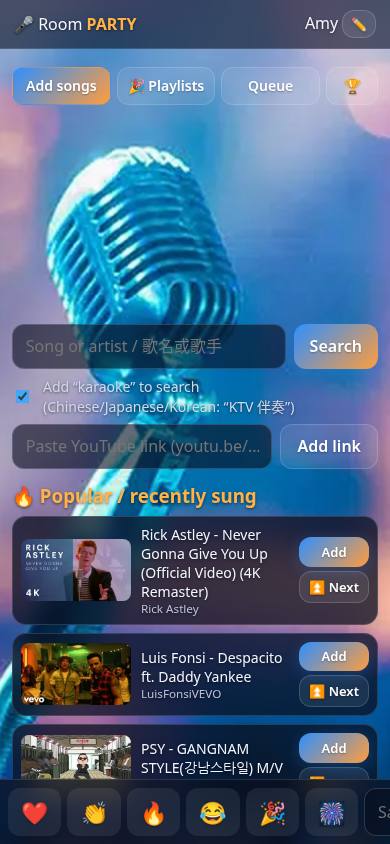
- Search: type a song or artist and tap Search. Keep Add “karaoke” to search ticked to find lyric/backing-track versions (for Chinese, Japanese and Korean songs it adds “KTV 伴奏”).
- Add puts the song at the end of the queue. ⏫ Next puts it right after the current song.
- Paste a YouTube link: in the YouTube app tap Share → Copy link, paste it into the link box and tap Add link. Links never count toward search limits.
- 🎉 Playlists: ready-made sets for when nobody knows what to sing. Open one and tap songs, or 🎲 Add random 3.
- 🔥 Popular / recently sung appears under the search box for one-tap adds.
The TV plays the queue in order and shows who is up next.
Mics and sound
What your phone's mic does
Encoreverse never sends your voice to the TV speakers. The phone mic is used only for two optional features, and only while your own song is playing:
- 🎙️ Score my singing (beta): tap it on your phone when your song starts. Your pitch is analysed on the phone; only the final score goes to the TV.
- ● Record (Premium rooms): records your mic only (the YouTube music can't be captured). Nothing is uploaded unless you tap ✉️ Email me a download link. Tick Auto-record my songs to start it automatically.
Allowing the microphone
The first time, your browser asks “Allow microphone?”. Tap Allow. If you tapped Block by mistake:
iPhone / iPad (Safari)
Tap ᴀA in the address bar → Website Settings → Microphone → Allow, then reload. Or Settings → Apps → Safari → Microphone. Also check Settings → Privacy & Security → Microphone.
Android (Chrome)
Tap the icon left of the address → Permissions → Microphone → Allow, then reload. Or Chrome ⋮ → Settings → Site settings → Microphone, and make sure Chrome itself has mic access in Android Settings → Apps.
Making your voice louder in the room
For real amplification, use karaoke mics that plug into the sound system, not the website:
- Wired mics into a karaoke machine, mixer, PA or a speaker with a mic input. Zero delay.
- Wireless (UHF/2.4 GHz) mic kits with their own receiver plugged into the speaker or soundbar. Low delay.
- Bluetooth karaoke mics with a built-in speaker are fun and easy.
⚠ Bluetooth adds delay (often 100–300 ms). Pairing a Bluetooth mic to the TV, or sending TV sound to Bluetooth speakers, can make the music and your voice feel out of sync. Prefer wired or the TV's own speakers/soundbar via HDMI or optical. Most TVs have no mic input, so mics usually go into a separate speaker or mixer.
Every menu and control
Homepage
| Create party room | New room; this screen becomes the TV stage. |
| 🎤 Sing solo on this device | Stage and song panel on one screen. See the solo guide. |
| Room code + Join as guest / Open TV | Join an existing room on this phone, or open its stage on another screen. |
| Sign in · Go Premium | Account page: sign in with a 6-digit email code, buy Premium or a Party Pass. |
| Have a promo code? | Redeem a code for Premium (sign-in needed). |
TV / stage screen
| Tap to start the stage 🔊 | Unlocks sound and goes full screen where possible. |
| QR code + room code | Big when idle; a small one stays in the bottom-right corner during songs. |
| Up next | The next singer, their stats tonight and the queue. |
| Now-playing bar + 🎤 Karaoke / 🎵 Original | Top-left during a song; switches between the karaoke and original video when both were found. |
| Guests pill | Bottom-left: guest count and plan (e.g. Guests 1/2 · Free). |
| 🏆 Scoreboard | Full-screen leaderboard: songs, claps, average ⭐ and best 🎙️ voice score. |
| Applause meter 👏 | Fills as guests clap; each song ends with a star rating, and 5 stars sets off fireworks. |
| ? Guide | Opens this page. |
Phone (guest) screen
| Add songs | Search, karaoke toggle, paste link, popular songs. |
| 🎉 Playlists | Ready-made playlists and 🎲 Add random 3. |
| Queue | Now playing with 🎵 Original / 🎤 Karaoke and ⏭ Skip; queued songs with ⏫ Top (move to the top) and ✖ Remove (your own songs). |
| 🏆 | Tonight's scores, with you highlighted. |
| 👏 Clap | Shows during a song; claps fill the TV's applause meter. |
| ❤️ 👏 🔥 😂 🎉 🎆 + Say something… | Bottom bar: send floating emoji, fireworks or a short message across the TV. |
| 🎙️ Score my singing | Appears on your phone when your song plays (beta). |
| Recording card | Premium rooms, your own songs only: ● Record, ■ Stop, then save or discard. |
Skip, Top and Karaoke/Original are open to everyone in the room. It's a party, so play nice.
Free vs Premium vs Party Pass
Hosting and singing are free. Premium belongs to the host: rooms you create while signed in with Premium get the extras, and your guests do too.
| Free · Premium $3.99/month · Party Pass $2.99 for 24 hours | |
| Guests per room | Free: up to 2 · Premium/Pass: unlimited |
| New song searches | Free: limited per room and per guest · Premium/Pass: unlimited. Playlists, popular songs and pasted links are always free. |
| Ads | Free: shown, never over the video · Premium/Pass: none in rooms you host |
| Recording | Free: no · Premium/Pass: you and your guests |
| Voice score, scoreboard, playlists | Everyone |
Sign-in has no password: enter your email, we send a 6-digit code. Promo codes are redeemed on the account page after you sign in.
Troubleshooting & FAQ
No sound
Tap Tap to start the stage 🔊 (browsers block sound until a tap). Check the TV/laptop isn't muted and the right output is selected. When casting, cast the tab or screen with audio. Reloading the stage asks for the tap again.
The video won't play or gets skipped
Some YouTube videos don't allow playing on other sites. The stage shows “This video can't be played here — skipping” and moves on. Search for another version (karaoke versions usually work) or paste a different link. Slow smart-TV browsers may struggle; casting or HDMI from a laptop helps.
“This free party is full”
Free rooms take up to 2 guest phones. The host can upgrade to Premium or a Party Pass for unlimited guests. The waiting phone keeps trying and gets in automatically if a spot opens or the host upgrades.
My sign-in code didn't arrive
Wait a minute and check spam, junk or promotions. Make sure the email is spelled right, then tap Send code again. You can also tap the link in the email instead of typing the code.
“Search isn't available” or search limit reached
Free rooms have a daily search allowance. Use 🎉 Playlists, Popular songs, or paste a YouTube link: those never count.
The mic button says blocked
Re-allow the microphone (see step 5) and reload the page.
Phones show “Reconnecting…”
A Wi-Fi or mobile-data blip. It reconnects on its own; keep the page open. If it doesn't, reload.
The TV went to sleep
Turn off the TV's power-saving or screensaver and keep the laptop plugged in with sleep disabled. Then reload the stage and tap to start.
Singing alone on an iPad or laptop?
Solo mode puts the stage, search and your mic on one screen.