Start solo from the homepage
- Open karaoke.encoreverse.com on the device you'll sing on.
- Tap 🎤 Sing solo on this device (just under Create party room).
- Tap Tap to start the stage 🔊 to unlock sound. On wide screens it also goes full screen.
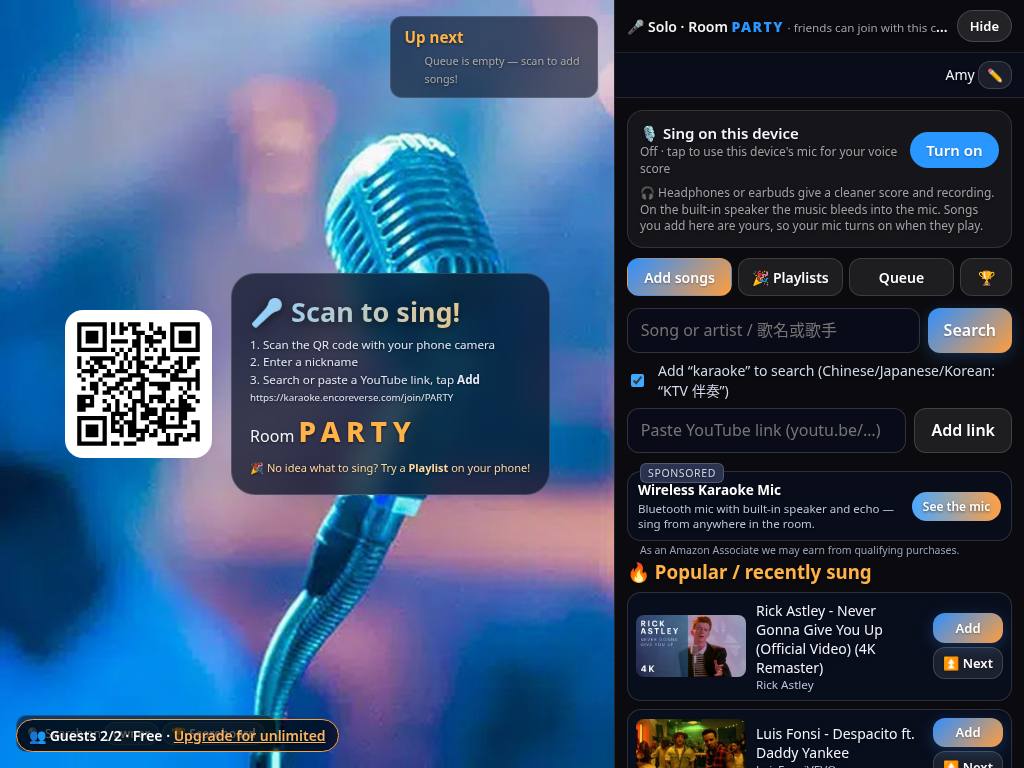
The stage plays on one side and the Songs & mic panel sits beside it (landscape) or below it (portrait). It's a real room, so friends can still join from their phones with the room code shown in the panel header.
Pick a device
📱 iPad or tablet
The sweet spot. Landscape gives the stage and panel side by side; portrait stacks them. Use a stand so the mic faces you.
💻 Laptop
Bigger video and full screen. Want it on the TV too? Connect with HDMI or mirror it. Laptop mics sit farther away, so sing toward the screen.
📲 Phone
Works anywhere; the stage sits on top and the panel below.
Keep the device plugged in. Solo asks the browser to keep the screen awake where supported, and stays on the stage tab.
Headphones or speaker?
- 🎧 Headphones or earbuds (recommended for scoring): the music goes to your ears, so the mic hears only you. Cleaner voice score and recording.
- 🔊 Speaker: more fun for a room, but the music bleeds into the mic and can lower the score or muddy recordings. Turn the volume down a bit and keep the device close to you.
⚠ Bluetooth headphones add a little delay. Fine for singing along; wired earbuds feel tightest.
Turn on your mic
- In the panel, find 🎙️ Sing on this device and tap Turn on.
- Allow the microphone when the browser asks. The button switches to On.
- Now, whenever one of your songs plays, the mic turns on by itself and the voice score (beta) runs. Songs you add in the panel are yours.
Scoring runs on your device; only the final score is shown on the stage. Tap On again to turn the mic off.
Re-allowing a blocked mic
If you see “Microphone blocked”:
iPad / iPhone (Safari)
Tap ᴀA in the address bar → Website Settings → Microphone → Allow, then reload. Also check Settings → Privacy & Security → Microphone.
Android (Chrome)
Tap the icon left of the address → Permissions → Microphone → Allow, then reload.
Laptop (Chrome, Edge, Safari)
Click the icon in the address bar → Microphone → Allow. On a Mac also check System Settings → Privacy & Security → Microphone for your browser.
Controls on the solo screen
| Hide / Show | Panel header button: hides the panel for a full-size stage. In landscape, bring it back with 🎵 Songs & mic (top-right). In portrait the panel tucks to the bottom edge; tap Show. |
| 🎙️ Sing on this device | Mic on/off for automatic voice score (and recording in Premium rooms). |
| Add songs | Search (with the “karaoke” toggle), paste a YouTube link, or tap Add / ⏫ Next on Popular songs. |
| 🎉 Playlists | Ready-made sets and 🎲 Add random 3. |
| Queue | Now playing with 🎵 Original / 🎤 Karaoke and ⏭ Skip; ⏫ Top and ✖ Remove on queued songs. |
| 🏆 | Your scores tonight. |
| ✏️ | Change your nickname. |
| Stage: 🏆 Scoreboard, Up next, Karaoke/Original | Same as the TV stage in the party guide. |
The emoji and message bar is hidden in solo (you are the audience). Guests who join from their phones still get it.
Troubleshooting
No sound
Tap the start button, check the mute switch/volume, and on iPad make sure the side switch or Control Centre isn't muting it. Reload and tap again if needed.
Voice score seems low
Use headphones, hold the device closer, and lower speaker volume. It's in beta: treat it as fun, not a judge.
A video is skipped
Some YouTube videos can't play on other sites. Pick another version or paste a different link.
Sign-in code didn't arrive
Check spam, junk or promotions, confirm the address and send again. You can also tap the link in the email.
Got friends and a TV?
Party mode puts the stage on the big screen and everyone queues from their phone.